
How to Turn On Subtitles on Disney Plus (Every Device)
How to turn on subtitles on Disney Plus in a browser, on a phone, TV or Roku, change their language and look, fix missing tracks, and watch with two at once.
How to turn on subtitles on Disney Plus: start a title, open the audio and subtitles menu in the player, choose a subtitle language and close the menu. That works the same way on a computer, a phone and a TV; only the way you open the menu changes. To turn subtitles off, go back to the same menu and choose Off.
Below are the steps for each kind of device, how to change the language and the look of the text, why a language is sometimes missing, and how to watch Disney+ with two subtitle lines at once.
How to turn on subtitles on Disney Plus on each device
Disney's help center gives one set of steps for every device: while the title plays, open the audio and subtitles menu, pick a language, then close the menu with the X or the back arrow. People search for how to put subtitles on Disney Plus or how to get subtitles on Disney Plus, but there is no separate switch anywhere else. Only the place of the menu button changes.
In a web browser and on phones
Start a title on disneyplus.com, or in the app on an iPhone, iPad or Android phone. The menu icon is in the top right corner of the player: move the mouse or tap the screen to show it. Pick a subtitle language and close the menu.
On smart TVs, Fire TV and game consoles
Bring up the player controls with your remote or controller. The menu icon is in the bottom right corner of the screen; on some devices it looks like three dots. Pick a subtitle language and go back.
On Roku and Apple TV
These two have their own shortcut. On Roku, press the * button on the remote during playback. On Apple TV, swipe down on the remote. Either opens the same audio and subtitles menu.
Disney+ remembers your choice for the profile. The next title starts with the same languages if it has them, so you don't repeat this for every episode.
How to turn on captions on Disney Plus
Captions and subtitles live in the same list. If you're looking up how to turn on captions on Disney Plus, open the same menu: Disney's help center says captions (CC) are listed under the subtitle options. It also says that, with rare exceptions, most titles offer closed captioning, though availability varies by language.
A captions track has the dialogue plus sound notes and sometimes speaker names. For a language learner that is fine: the dialogue follows the audio closely, and you can skip the bracketed sound descriptions.
How to change subtitles on Disney Plus
There are two different things people mean by how to change subtitles on Disney Plus: the language and the look.
Change the subtitle language
Open the audio and subtitles menu during playback and pick another language. The list depends on the title and on your country or region, so two titles in the same account can offer different languages.
Change the size, font and background
Disney calls this subtitle styling, and where you change it depends on the device:
- Web: in the player, open the audio and subtitles menu, click the gear icon and adjust the Subtitle Styling settings. Disney notes that some browsers don't support this.
- Smart TV: in the Disney+ player, open the Audio & Subtitles menu at the top right and choose Subtitle Styling.
- iPhone, iPad and Apple TV: in the system Settings app, under Accessibility, Subtitles & Captioning, Style (on Apple TV it's under General first). If you make your own style, turn off Video Override for font, size, color and opacity, or the video's defaults win.
- Android: in Settings, Accessibility, Caption preferences (on Samsung phones, under Hearing).
- Fire TV, Xbox and PlayStation: in the device's own accessibility or closed captions settings.
How to turn subtitles off on Disney Plus
How to turn subtitles off on Disney Plus is the same menu in reverse: open the audio and subtitles menu during playback and choose Off under subtitles.
If text keeps appearing after that, the captions are probably coming from your TV or streaming device, not from Disney+. Many TVs, Apple TV and game consoles have a system-wide closed captions switch in their accessibility settings, and when it's on, apps show captions automatically. Turn it off there.
Why a subtitle language is missing on Disney+
Disney says that most titles have subtitles and dubbing, but availability varies by language and by country or region. Some well-known films, Disney mentions Frozen and Toy Story, even have several versions to account for regional and cultural differences.
So if the language you want isn't in the list:
- It may not exist for this title where you are. No setting will add it.
- You may be watching a different version. Disney suggests changing the app language for your profile: open the profile icon, choose Edit Profiles, select the profile and set App Language. If a version in that language exists, the title plays in it.
- You can ask for it. Disney+ has a feedback form in its help center for requesting missing subtitle or dubbing options.
When Disney+ subtitles don't work
If Disney Plus subtitles don't show up, show the wrong language or won't turn off, go through this list:
- Check the player menu first. Disney's help center starts here: make sure audio, captions and subtitles are set the way you want in the Disney+ app.
- Check the device's accessibility settings. Disney lists this as the second step: a system-wide captions switch can override what you picked in the app.
- Try another video. If other titles have the same problem, it's a streaming issue, not a subtitle one.
- Check the title. A language you saw on one film may not exist on the next one.
- Restart the app and play the title again if subtitles were working and stopped.
If a language is simply missing, Disney asks you to tell them through its feedback form; for anything else, its support team is there around the clock.
How to watch Disney+ with two subtitles at once
Disney+ shows one subtitle track at a time, on every device. To see two lines together, for example French and English, you need a computer and a browser extension. This is how Disney Plus dual subtitles work, and the setup is the same one we describe for two subtitles on Netflix.
- Install InterSub in Chrome, Edge or Firefox.
- Open disneyplus.com in that browser and start a title.
- In InterSub, choose the language you are learning and your own language.
- Adjust size, colors and position so both lines are easy to read.
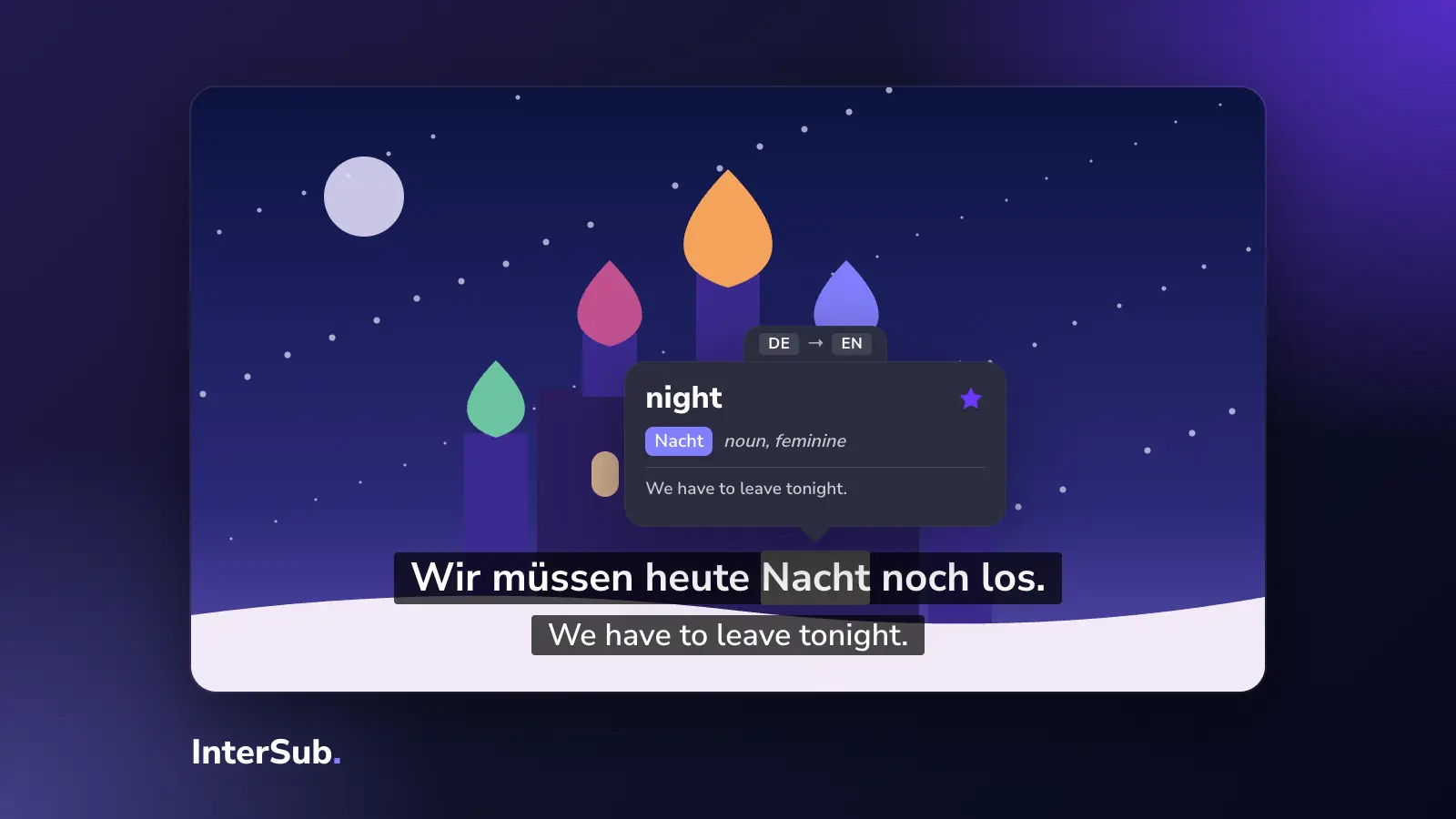
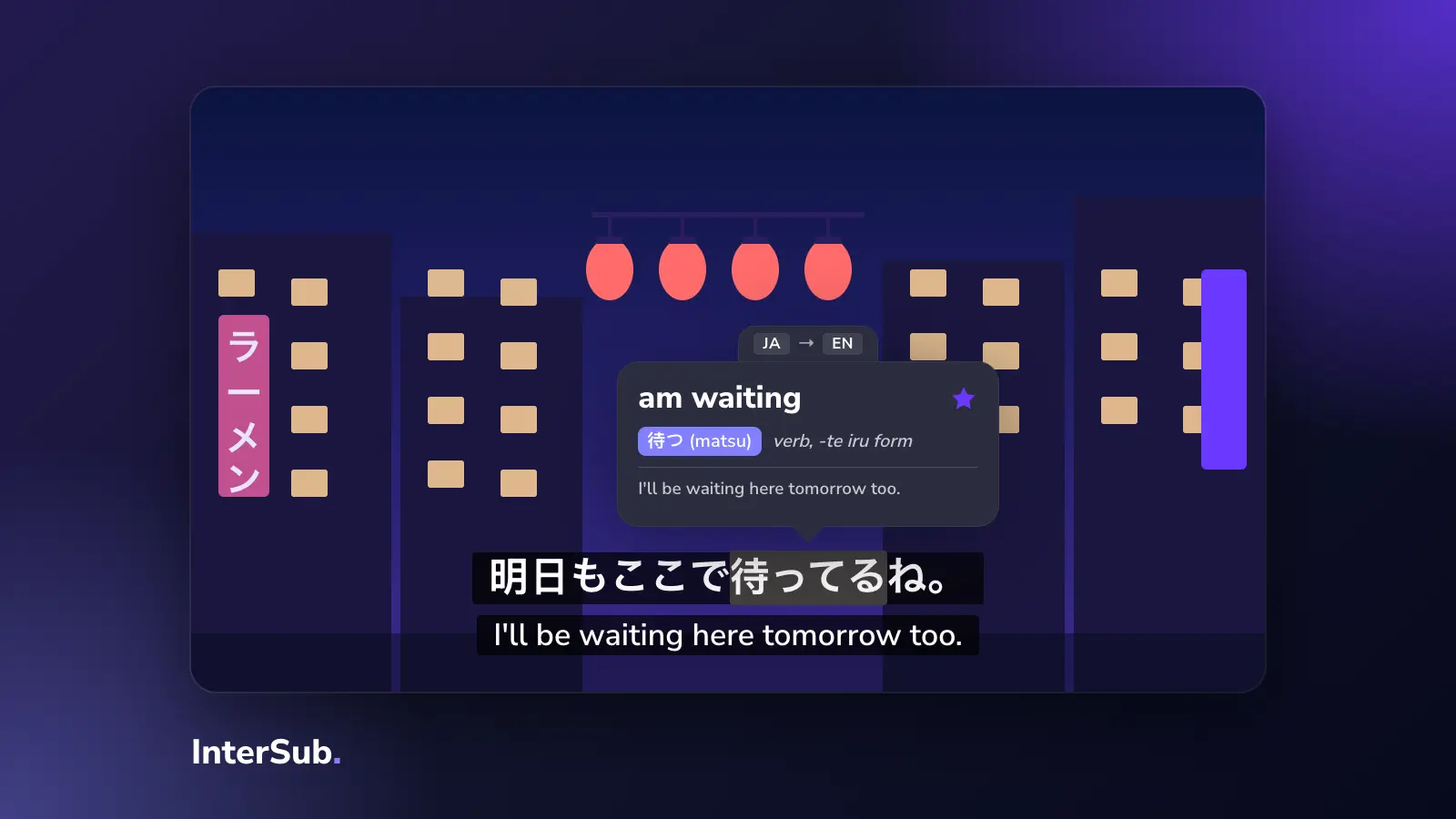
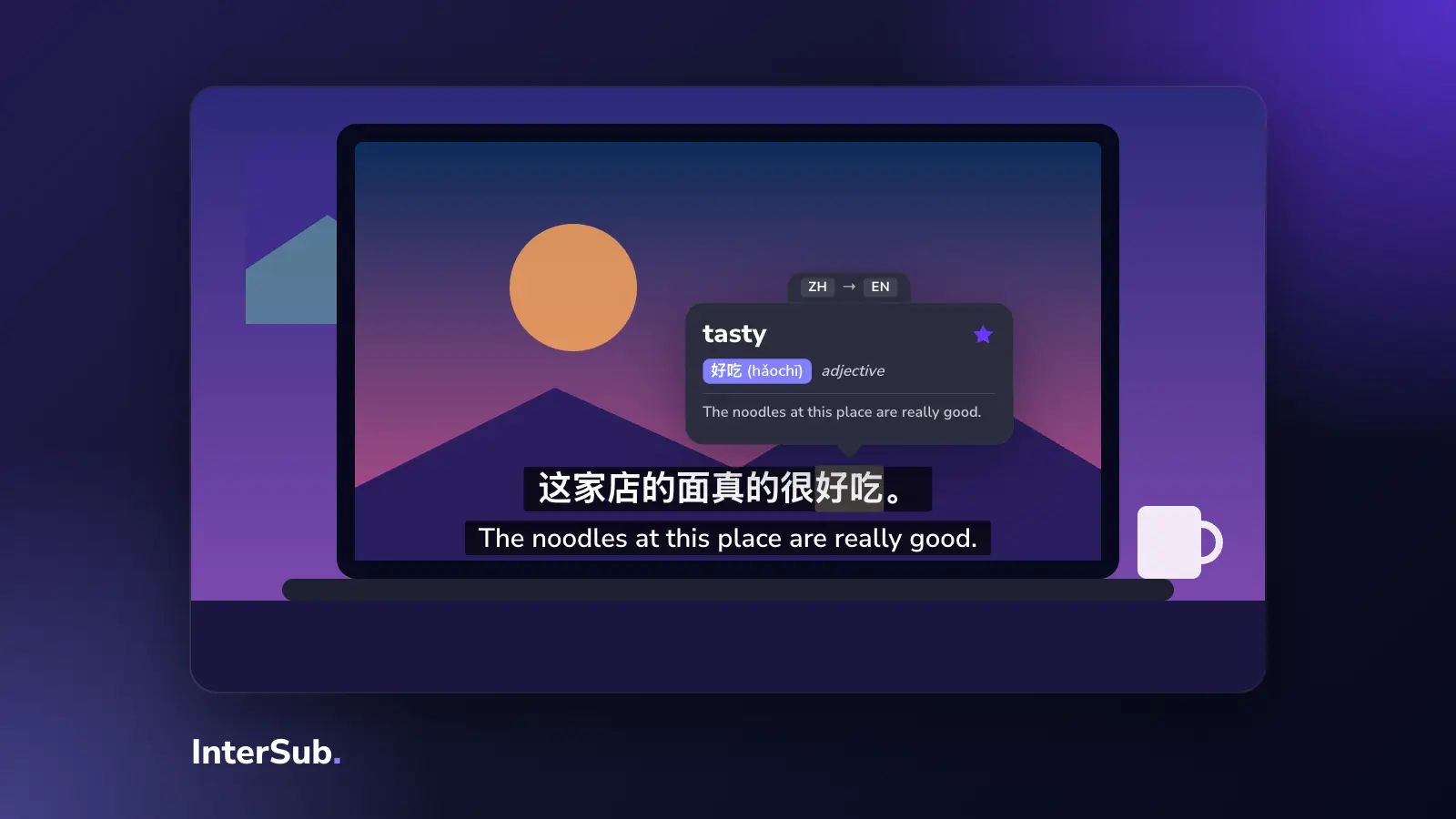
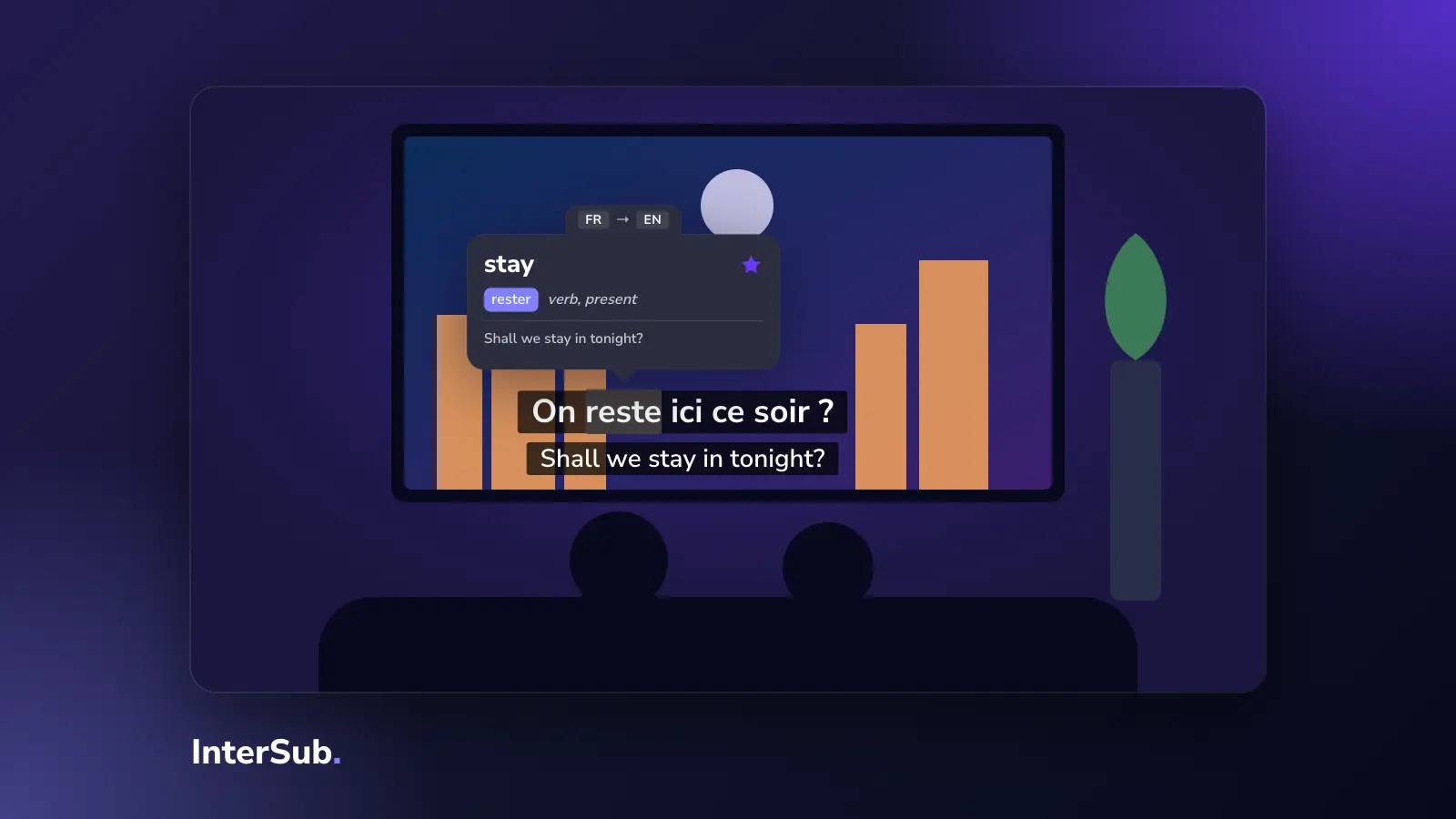
Now you watch with dual subtitles: the original line and the translation on screen together. Hover over any word and the video pauses and shows its translation with the words around it, so you can see which meaning fits the scene. Words you look up are saved to your Wordbook, which you can export to Excel or sync with Anki.
If a title has no subtitles in your language where you live, InterSub can translate the second line with AI. That is a paid feature; you can try it during the 14-day free trial. It needs at least one subtitle track to translate from, though: if a title has no subtitles at all, there is nothing to show.
There's one more case where AI translation helps. On dubbed titles, subtitles in your language often follow the dub, not the original audio, so they don't match what you hear. InterSub's forced translation setting ignores that track and translates the original line instead.
Extensions don't run in TV apps. To watch on the big screen, play Disney+ in your computer's browser and send the screen to the TV with AirPlay, Cast or an HDMI cable, then use InterSub's Remote Control on your phone to pause and look up words from the sofa. For a side-by-side look at other tools, see our dual subtitle extensions compared, or read what our dual subtitles extension does on each platform.
Disney+ for language learners
Disney says many of its titles, including Disney+ Originals, have more than 40 languages available across subtitles and dubbing. Animated films are usually the richest: the big ones tend to be dubbed and subtitled in many languages, because they're made for children all over the world.
That makes them a good starting point:
- You already know the story. A film you saw in English is much easier to follow in Spanish or French, so you can pay attention to the words.
- The voices are clean. Animated films are recorded in a studio, so there's no street noise under the dialogue.
- You can switch audio too. Listening to the dub in the language you're learning is good practice, but check the first few minutes: subtitles in the same language don't always follow the dub word for word.
For live-action series and films, watch in the original language. Subtitles made for the original audio match what the actors actually say.
A routine that works: watch an episode with both lines, then rewatch it with the second line shown only on pause (InterSub has a setting for this). Ten minutes on your Wordbook the next day does more than another episode with English always on. If you're not sure two lines suit you, read when double subtitles help and when they get in the way.
Frequently asked questions
How do I turn on subtitles on Disney Plus on my TV?
Start a title, bring up the player controls and open the menu icon in the bottom right corner, then pick a subtitle language. On Roku press the * button; on Apple TV swipe down on the remote.
Why are my Disney+ subtitles not working?
First check that subtitles are actually switched on in the Disney+ player, which is what Disney's help center suggests too. If the language you want isn't listed, the title doesn't have it in your country. If captions appear in other apps as well, your TV or streaming device's own caption setting is probably on.
How do I change the subtitle language on Disney Plus?
While the title plays, open the audio and subtitles menu and choose a different language under subtitles. The list depends on the title and your country or region.
Can you have two subtitles on Disney Plus?
Not in the Disney+ apps: they show one subtitle track at a time. In Chrome, Edge or Firefox on a computer, a dual subtitles extension such as InterSub adds a second line.
How do I turn off subtitles on Disney Plus?
Open the audio and subtitles menu during playback and choose Off for subtitles. If text still shows, check the closed captions or accessibility setting on your TV or streaming device.