
Double Subtitles: Two Subtitles at Once for Learning
What double subtitles are, when two subtitles at the same time help you learn a language, when they get in the way, and how to show them in YouTube or VLC.
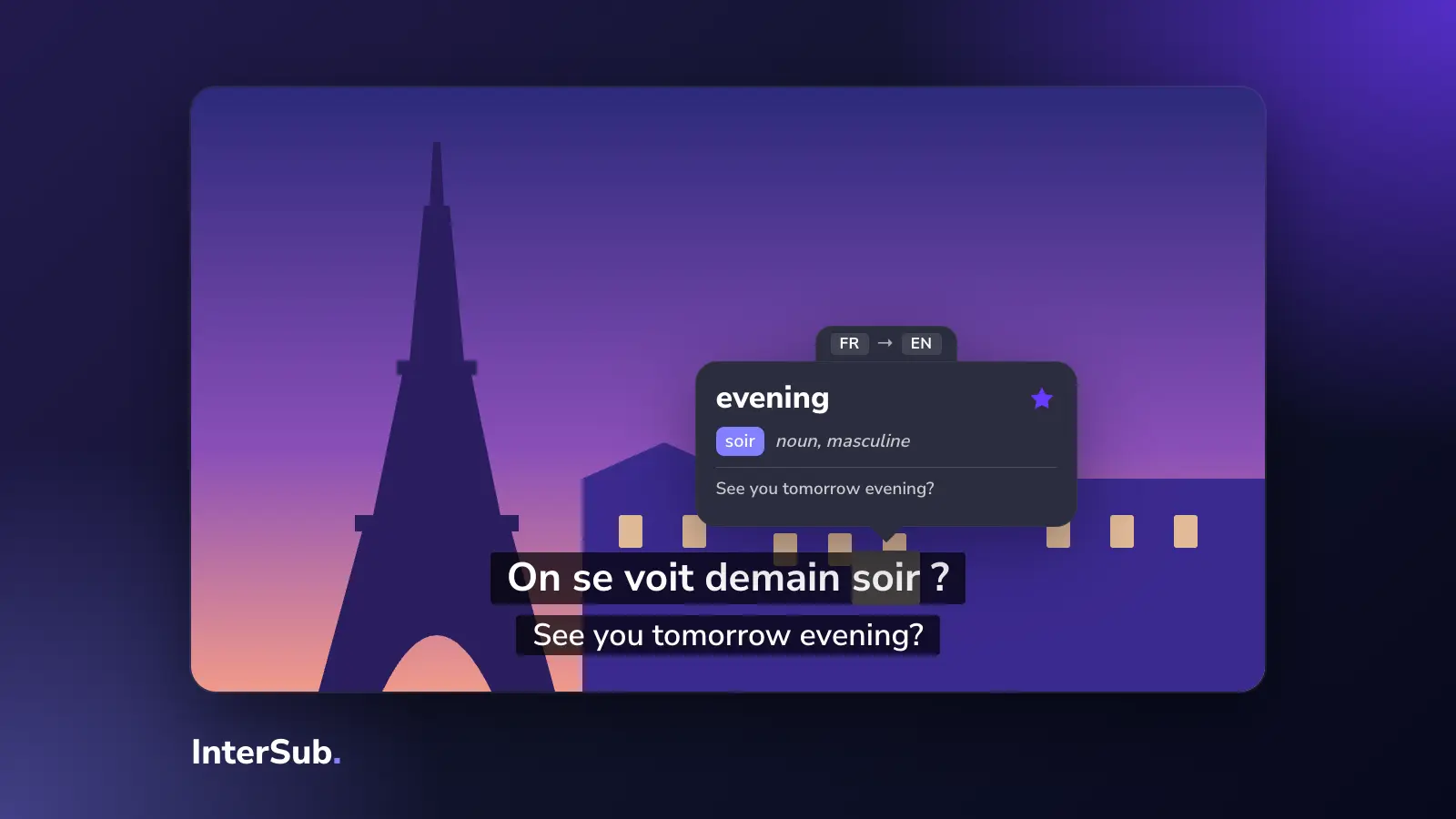
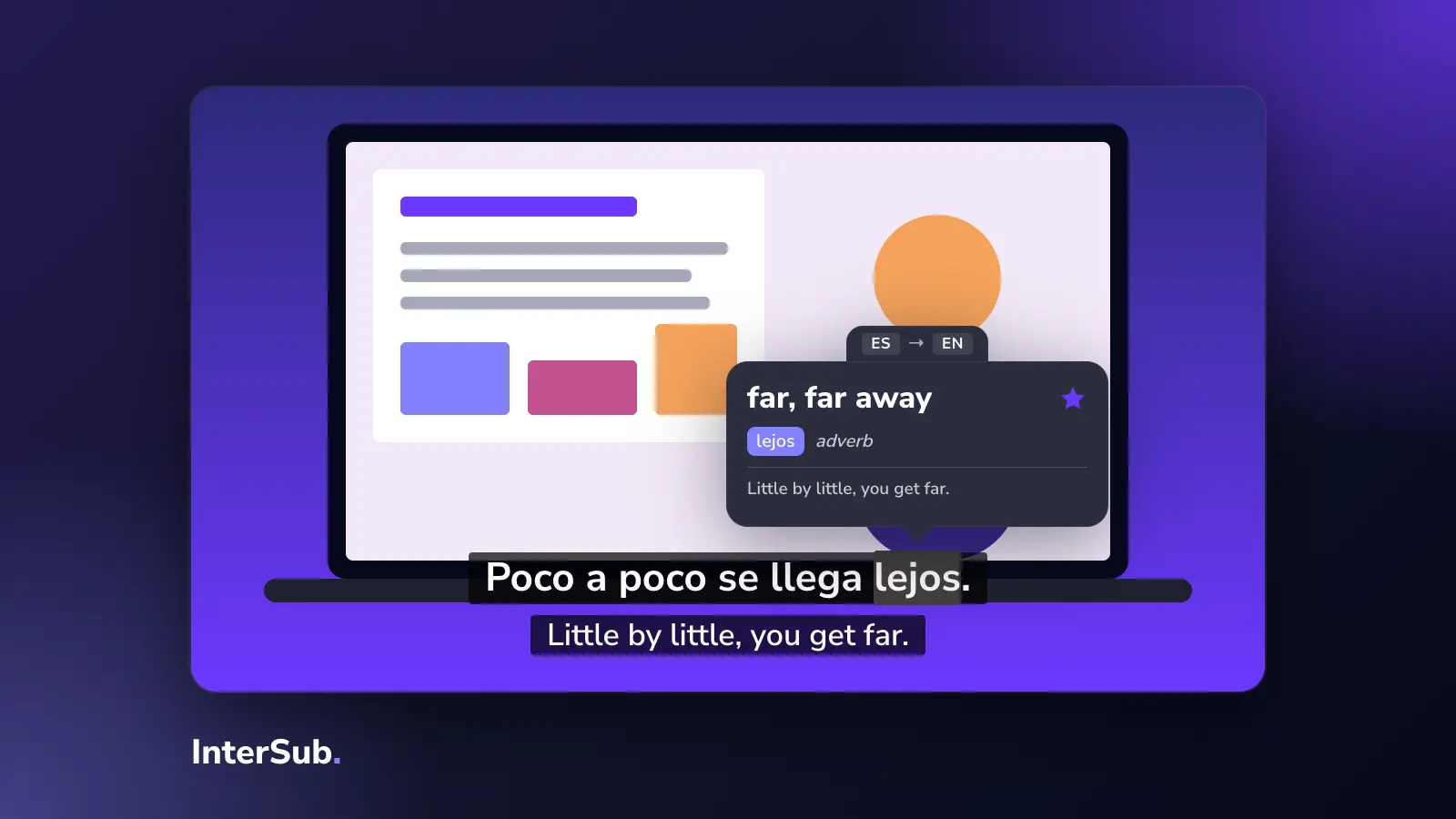
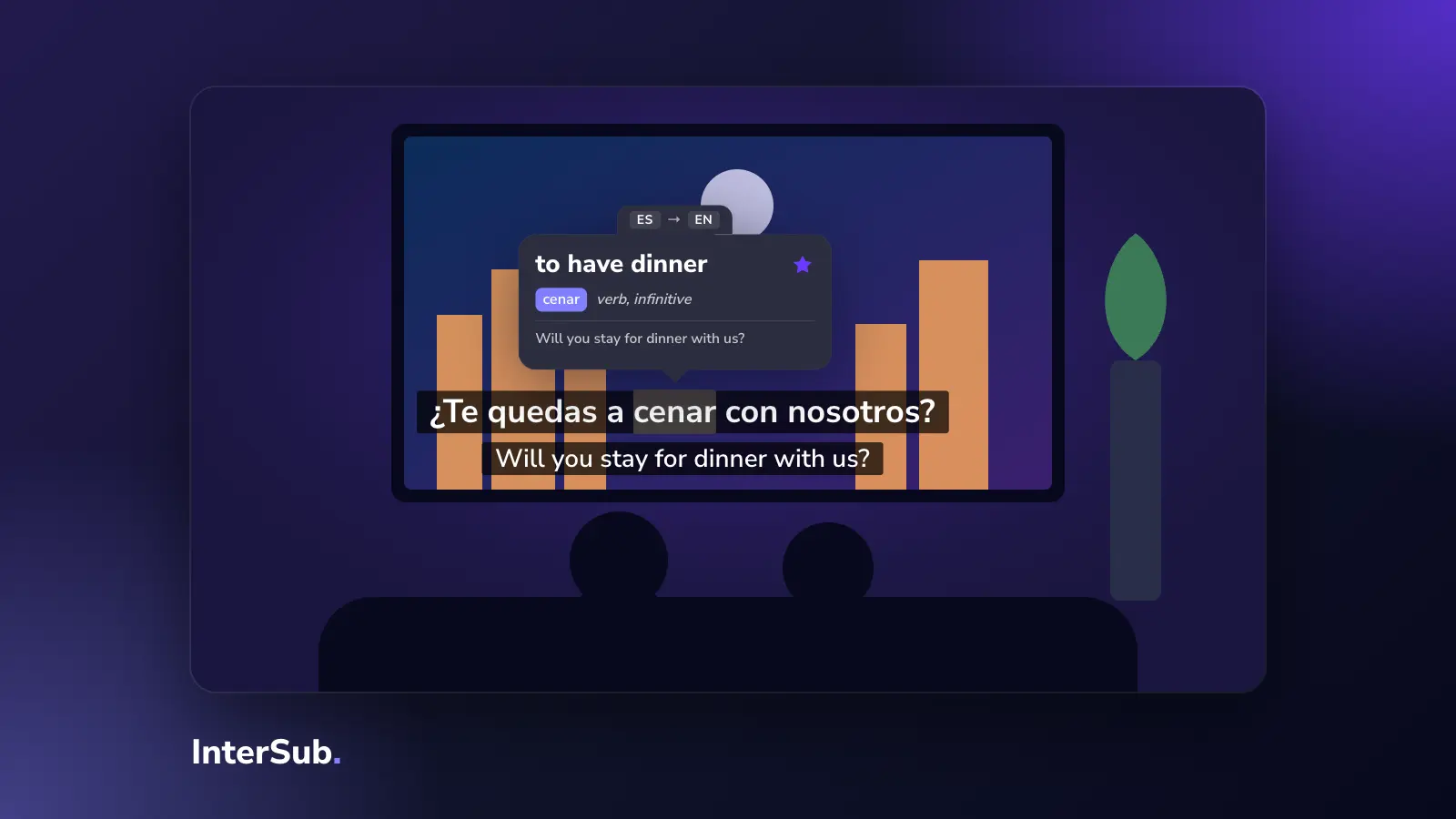
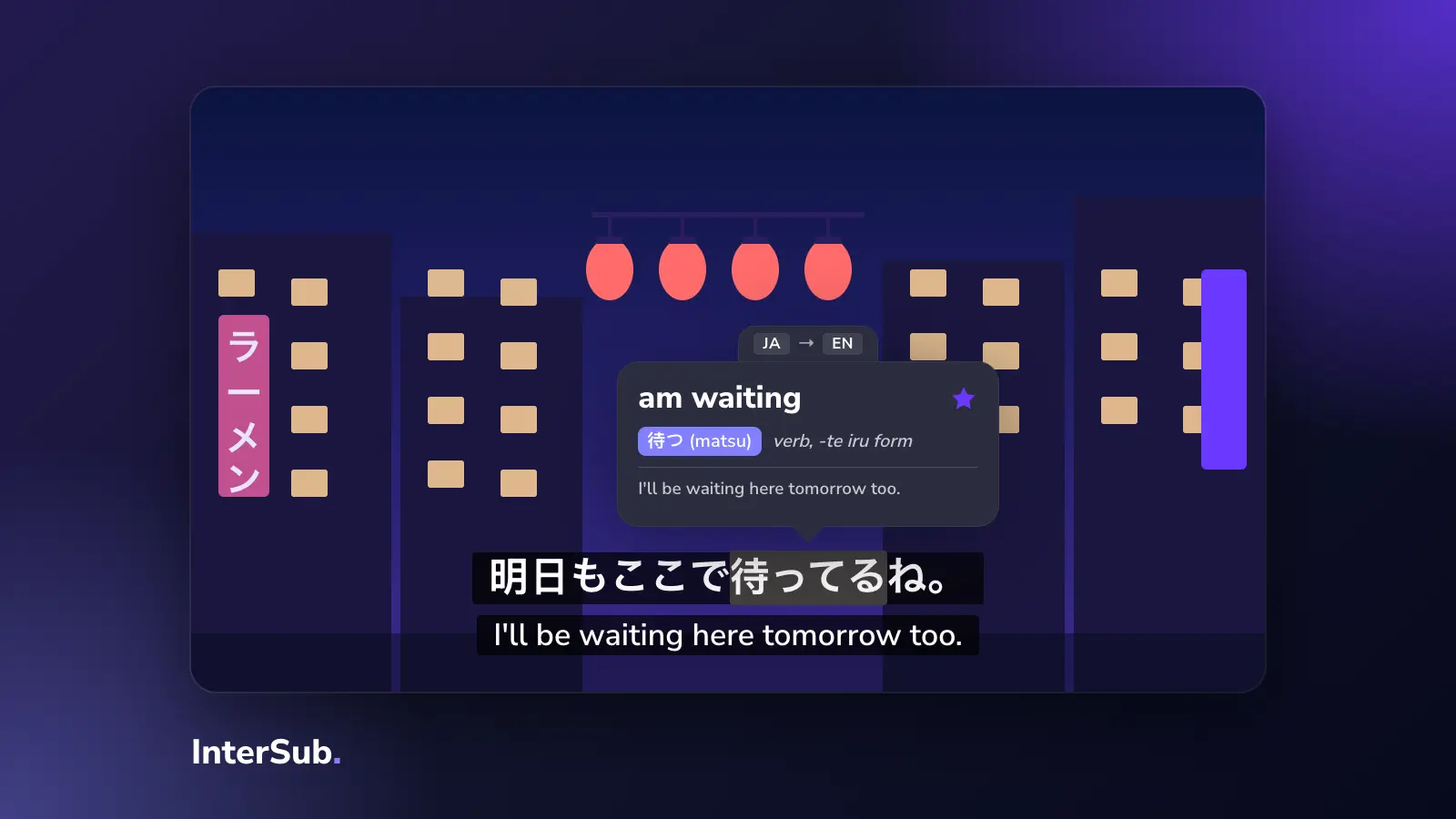
Double subtitles are two subtitle lines on screen at once: one in the language of the video, one in yours. They are also called dual subtitles, dual subs or bilingual subtitles, and they exist mainly for one reason: they let you watch something in a language you are learning without losing the story.
What two subtitles at the same time give you
With one subtitle line you choose between two bad options. Subtitles in the video's language are honest practice, but you miss half the meaning. Subtitles in your language keep you in the story, but you stop listening and just read.
Dual language subtitles remove that choice. Your ears hear the words, your eyes see them written, and the translation is right there when a sentence doesn't make sense. For a learner, that is the difference between giving up after ten minutes and finishing the episode.
The same setup works for families: one person follows the original line, another reads their own language, and nobody has to watch dubbed audio.
When dual subs get in the way
There is a catch. Your brain prefers to read the language it knows. After a while, many people stop reading the target line and just follow the translation. The video becomes a dubbed film with extra steps.
What works for us and for many learners:
- At the start, keep both lines on.
- When you understand most of a scene, hide the translation and show it only on pause. You listen first and check second.
- When a word keeps coming back, look it up and save it, instead of reading the translation each time.
Subtitles for language learning are not about seeing more text. They are about seeing the right text at the right moment.
How to watch with two subtitles
YouTube. YouTube plays one caption track. To get YouTube dual subtitles, install a dual subtitles extension such as InterSub in Chrome, Edge or Firefox. It shows the video's own captions and adds a second line in your language. If the video has no captions at all, there is nothing to show; InterSub doesn't create subtitles from the audio.
Netflix. Netflix also lets you pick one subtitle track. With an extension you get Netflix dual subtitles on a computer, and you can send the browser tab to a TV. We wrote a separate guide on how to watch Netflix with two subtitles.
VLC. To make VLC show two subtitles at once, you need a workaround: stable desktop VLC plays one subtitle track. People use the Subtitler Lite (mod) extension for VLC, switch to a player with a secondary-subtitle setting such as PotPlayer, or merge two SRT files into one so that each line holds both languages. All three work with downloaded files, not with streaming sites.
Dual captions with InterSub
InterSub was built around this one idea. It shows dual subtitles on YouTube, Netflix, Prime Video, Coursera, Udemy and other platforms, in more than 30 languages. Hover over a word and the video pauses and shows its translation; the word goes to your Wordbook for review in Anki. The settings follow the advice above: both lines, only one line, or the second line only on pause.
Bilingual subtitles are free in InterSub. On paid plans InterSub can also translate the second line live when the platform has no subtitles in your language.
Frequently asked questions
What are dual subtitles?
Two subtitle lines on screen at the same time, usually in the language of the video and in your own. They are also called double subtitles, dual subs or bilingual subtitles.
Do dual subtitles help you learn a language?
They help most when the language is still too hard to follow with one line: you hear the words, see them written and check the meaning without stopping. Once you understand most of a scene, hide the translation and keep it for pauses.
How do you show two subtitles at once in VLC, YouTube or Netflix?
YouTube and Netflix show one subtitle track, so you need a browser extension such as InterSub. Desktop VLC shows one track too; a VLC extension, a player with a secondary-subtitle setting, or two SRT files merged into one will do it.
Which subtitles should be on top: native or target language?
Put the language you are learning where your eyes go first, usually the bottom line next to the picture, and your own language above it. If you catch yourself reading only your language, swap them or hide it until you pause.