


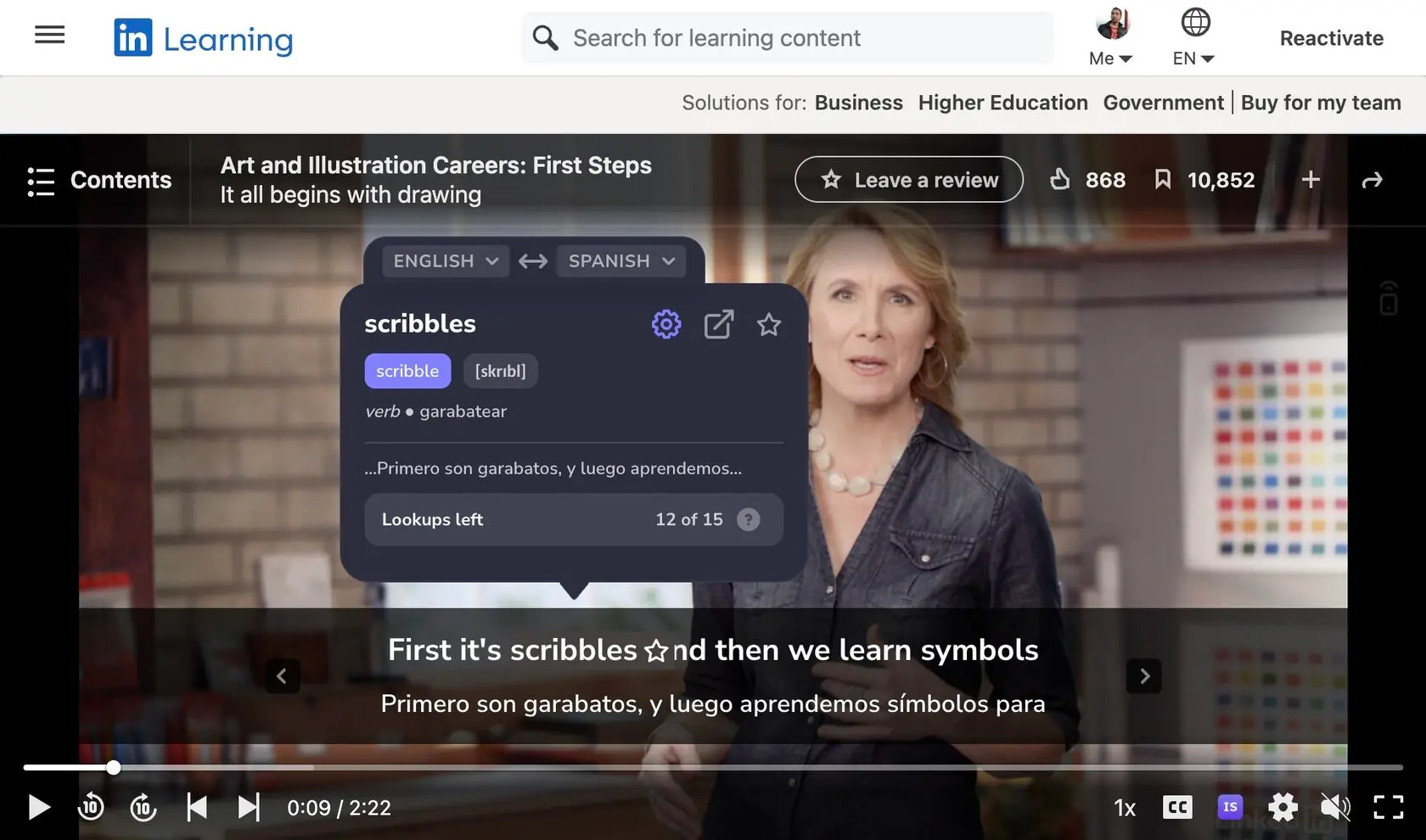
LinkedIn Learning dual subtitles and a subtitle translator
LinkedIn Learning courses with two subtitle lines and instant translations
LinkedIn Learning teaches business, software and creative skills, and most courses are in English. LinkedIn Learning dual subtitles from InterSub show the instructor's words and their translation together, so you build professional skills and the language of your industry at once. Hover any word for a pop-up dictionary, and it is saved for review. InterSub is a free extension for Chrome, Edge and Firefox and works on YouTube, Netflix, Udemy, Coursera and TED too.
How LinkedIn Learning dual subtitles work

Dual subtitles for professional courses
Watch a LinkedIn Learning course with two subtitle lines: the language of the course and your native language, one above the other. You follow the instructor and learn how your field talks in English.
Pop-up dictionary on hover
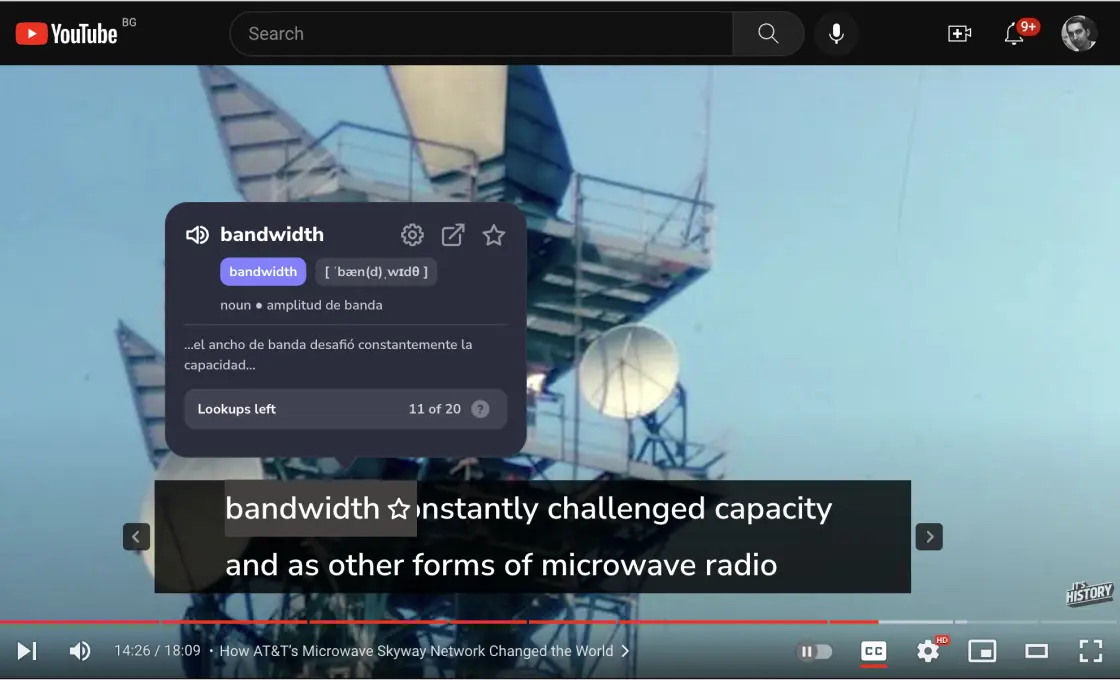
Hover over any word in the LinkedIn Learning subtitles. The video pauses, and a pop-up dictionary shows the meaning with a context translation of the words around it, so you see what business jargon means in this lesson.
A vocabulary builder for your career
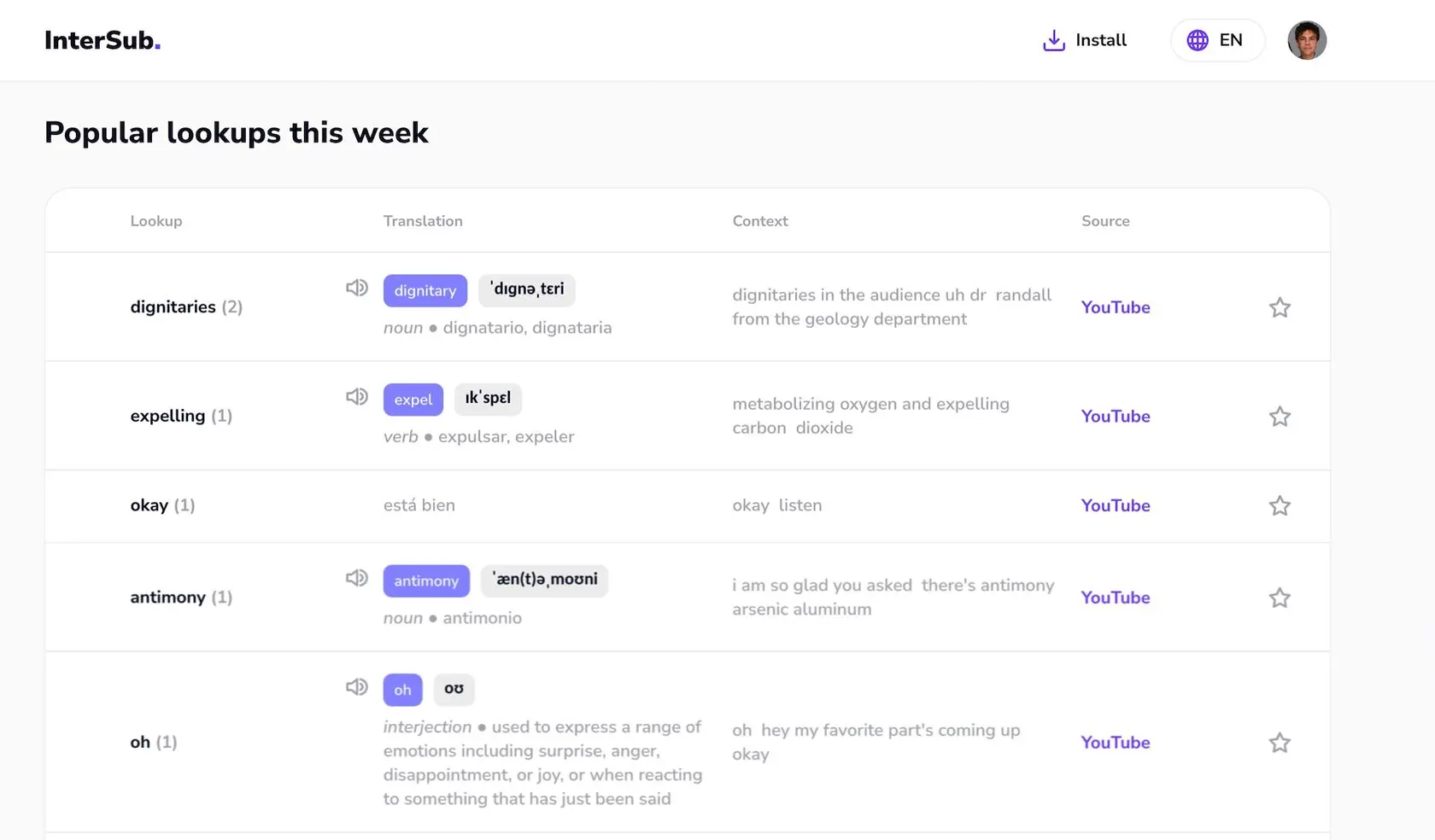
Every word you look up is saved to your Wordbook with the line it came from. Your courses turn into a vocabulary builder of the terms you use in meetings and emails.
Practice words in Anki or our Telegram bot
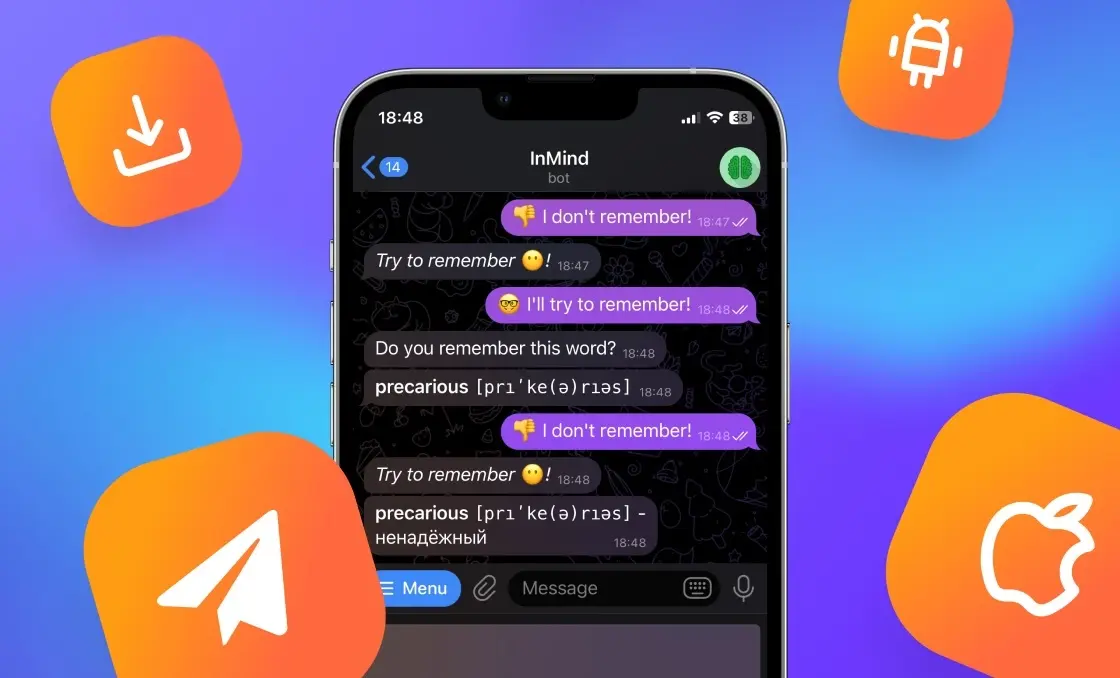
To learn new words from your Wordbook, sync it with Anki on desktop or mobile, or train them in our Telegram bot: it explains each word, checks your own example sentences with an AI tutor and brings words back with spaced repetition. The words from your LinkedIn Learning courses stay with you after the video ends.
More language learning tools for LinkedIn Learning
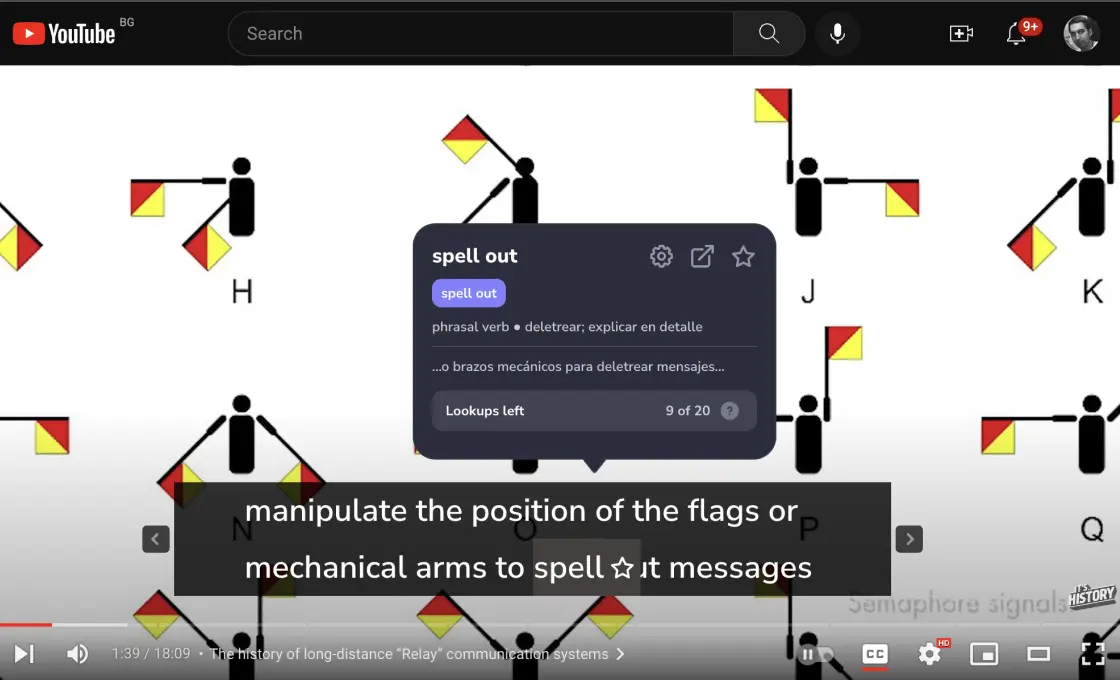
Phrases, idioms and phrasal verbs
The AI recognizes English phrasal verbs, idioms and compound nouns in LinkedIn Learning subtitles and translates the meaning of the whole phrase, not word by word.
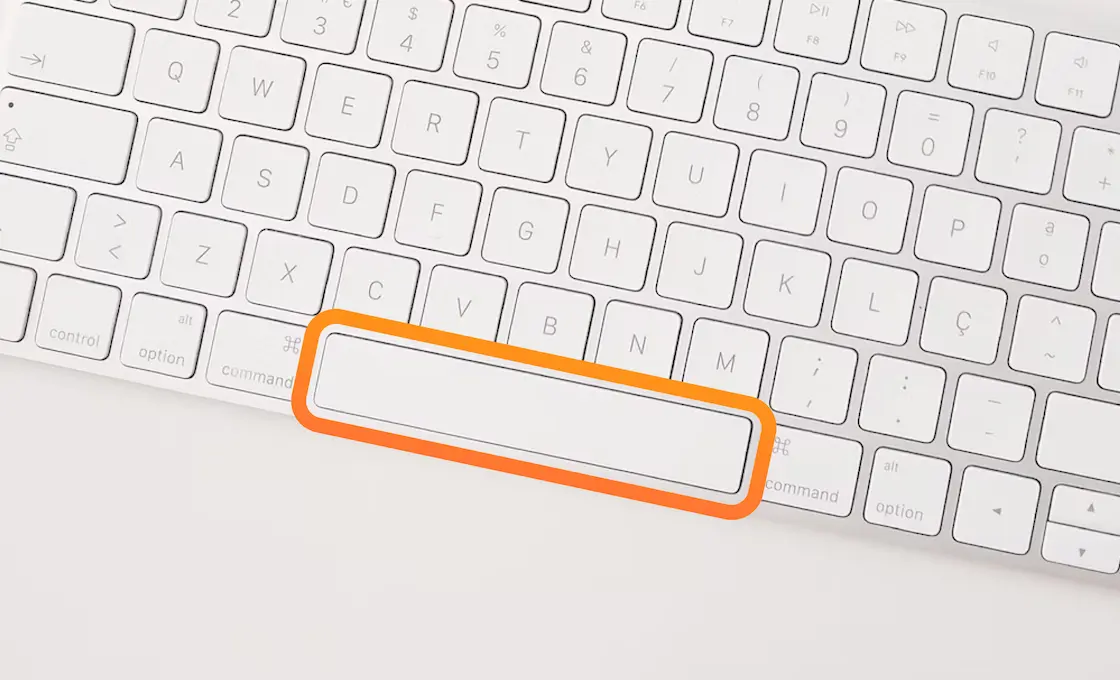
Hotkeys: control subtitles from the keyboard
Control the lesson and the subtitles without the mouse:
- ← / → rewind and fast-forward, Space pauses and plays
- = / − make the main subtitles bigger or smaller; add Shift for the second line
- ↑ / ↓ move subtitles up or down
- Ctrl+I (Cmd+I on Mac) turns InterSub on or off on any site
- S turns shadowing on or off
- D turns dual subtitles on or off
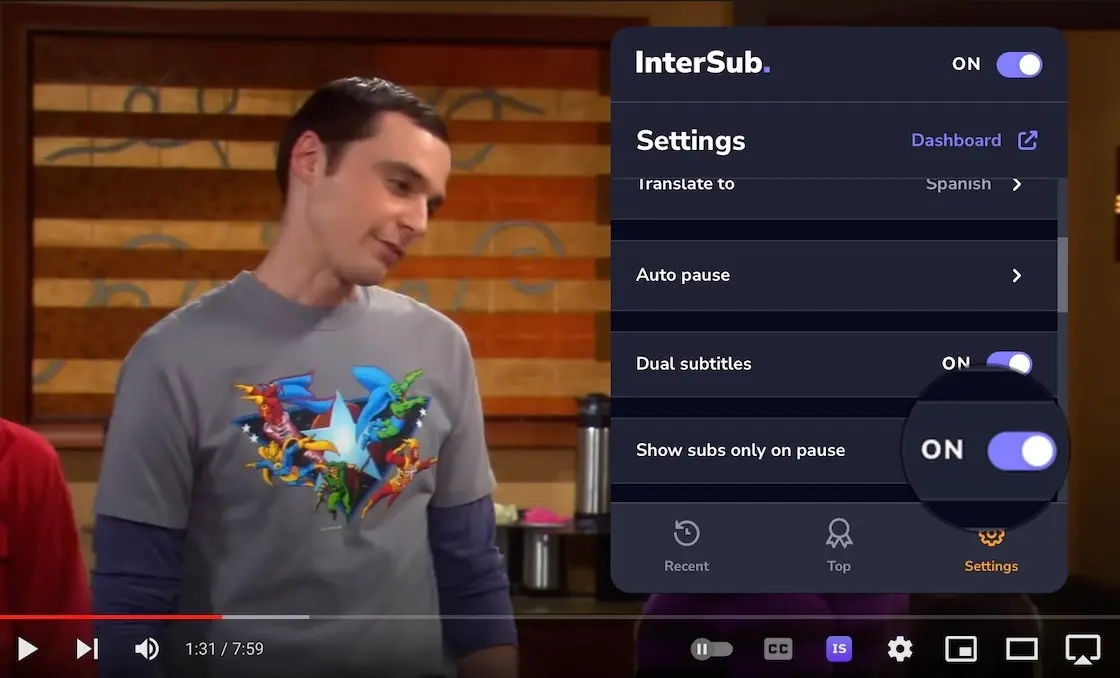
"Show subtitles on pause"
Train your listening: subtitles stay hidden while the lesson plays and appear when you pause. Or keep one line on screen and reveal the translation only when you pause.
See dual subtitles in action

Learn the language while you grow your career
Every LinkedIn Learning lesson becomes language practice: you follow the course, look up the terms you don't know and keep them for review. No extra study time needed.
Every LinkedIn Learning lesson becomes language practice: you follow the course, look up the terms you don't know and keep them for review. No extra study time needed.
Our 50,000+ customers love InterSub
- Love the feature! My English is pretty good, but I'm not native, so, sometimes a little help could be handy. The fact that now I can check the translation without distraction is awesome! And it is completely worth the few bucks of a subscription.
Elena - I was invited to the beta-test, and was quite impressed! Thank you, guys, and can't wait for the Dictionary function.
Nick - This function is really helpful! Translation to French seems pretty accurate. It’s great that there is no need to interrupt watching if you didn't understand a new word.
Alex - Really helped me and my wife to watch movies as we have a different first language, she was able to learn some words or phrases from the movies as well. Overall really good quality compared to any other extension or app I've ever found. AND TRUST ME I'VE LOOKED AROUND.
Pedro F.Chrome Web Store - Amazing app, helps me a lot while learning another language. It works stable, and i really like remote control feature.
A. Faruk U.Chrome Web Store - The best app for language learners ive ever seen
SerhiiChrome Web Store - Everything works, I recommend it. I especially liked the AI translation into Ukrainian from English.
LeonFirefox Add-ons - Really love what you guys have built! Would like this enabled for Picture-In-Picture mode for background learning. That would be ultimate.
RipplesFirefox Add-ons - I think this is the best extension to learning language in firefox.
Firefox userFirefox Add-ons - Amazing extension especially for student , all of people need this , thank you
Sahan S.Chrome Web Store - Great app with a lot of useful features
Tuyen L.Chrome Web Store - I really love this app, thank you so much!
Leo D.Chrome Web Store - That's so good, very convenient
Hân H.Chrome Web Store
Join thousands of InterSub users and learn from every video and course
Frequently asked questions
What is InterSub?
InterSub is a dual subtitles extension and translator extension for Google Chrome, Microsoft Edge and Firefox, made for language learning. It shows interactive dual subtitles and instant word translations on YouTube, Netflix, Prime Video, HBO Max, Disney+, Crunchyroll, Bilibili.tv, Shahid and TED, and on course platforms Coursera, Udemy, LinkedIn Learning, Domestika, DW Learn German and Learn.cantrill.io.
How do dual subtitles work in InterSub?
While you watch, InterSub shows two subtitle lines: the original and your native language. Hover over an unfamiliar word to see a pop-up dictionary with a context translation. Every word you look up is saved in your InterSub Dashboard: click “Dashboard” in the extension settings to open it.
How does InterSub help me learn on LinkedIn Learning?
Open any LinkedIn Learning course with subtitles and InterSub adds the second line in your language, with a pop-up dictionary on every word. If a course has no subtitles in your language, the AI subtitle translator works as a LinkedIn Learning subtitle translator on the fly; it comes with the paid plans and the 14-day trial. You learn the course content and improve your language at the same time.
Is InterSub suitable for beginners?
Yes. Dual subtitles let beginners follow the story in their native language while they see and hear the language they learn. The pop-up dictionary explains any word in one hover.
Can I use InterSub for multiple languages?
Yes. InterSub supports dozens of language pairs, such as English to Spanish, Spanish to English, English to Japanese, English to Chinese and German to English. Set “Translate from” and “Translate to” in the extension settings.
How much does InterSub cost?
Dual subtitles are free. The free plan includes a monthly number of word lookups and starts with a 14-day Premium trial. Pay-as-you-go packs of 50, 100, 200 or 500 lookups start at $1.49, and Premium with unlimited lookups starts at $6 a month. Both paid options include the AI subtitle translator. See plans and prices.
Is there a trial period for InterSub?
Yes. Every new user gets a 14-day free trial of Premium, with AI subtitle translation included. After the trial you stay on the free plan, or choose a paid one on the plans page.
How do I install InterSub?
Install the extension from the Chrome Web Store, Microsoft Edge Add-ons or Firefox Add-ons: open the InterSub page and click “Install”, usually in the top-right corner. Links for every browser are on the install page.
Which browsers are compatible with InterSub?
Google Chrome, Microsoft Edge and Firefox. Chromium-based browsers such as Arc and Brave use the Chrome version. The install page has a button for each browser.
How to use hotkeys with InterSub?
- ← / → rewind and fast-forward, Space pauses and plays
- = / − make the main subtitles bigger or smaller; add Shift for the second line
- ↑ / ↓ move subtitles up or down
- Ctrl+I (Cmd+I on Mac) turns InterSub on or off on any site
- S turns shadowing on or off
- D turns dual subtitles on or off
More questions about InterSub? See all answers in our FAQ.
Get Started with InterSub
InterSub is a free browser extension for Chrome, Edge and Firefox. Install it today and learn a language from every LinkedIn Learning course you take.