
How to Open an MKV File Online, with Subtitles and No Install
Play MKV files in your browser: what's inside an MKV, why some won't play, and how to watch one with its own or external subtitles, in two languages at once.
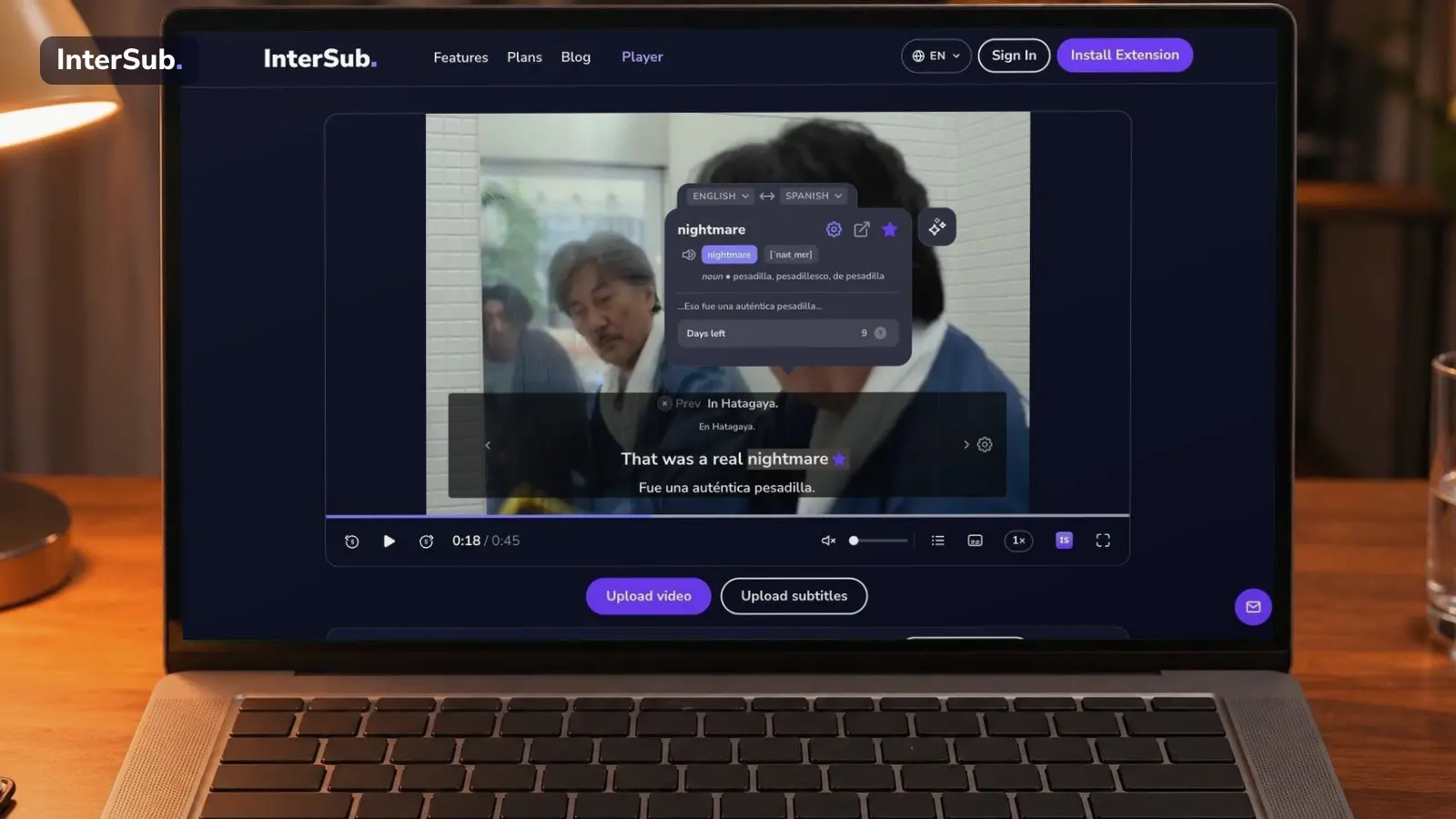
You have a film as an .mkv file, and the computer won't open it, or the browser plays it without sound. You don't have to install anything: an MKV player online runs in a browser tab and opens the file from your computer. Below is how to open an MKV online with the InterSub Player: with the subtitles inside the file or a separate SRT, in one or two languages, and with a translation for any word you hover.
What is inside an MKV file
MKV (Matroska) is a container format, not a video codec. One MKV file can hold:
- a video track, usually H.264, H.265 or VP9;
- several audio tracks: the original, dubbed versions, a commentary;
- several subtitle tracks: text subtitles in different languages, or picture subtitles copied from a Blu-ray or DVD;
- chapters, like the scene list on a disc.
That's why MKV is the usual format for films and series saved from discs. It is also why a browser may refuse to play one: it may not support the container, or it can't decode a track inside it.
Why an MKV won't play in the browser
Chrome, Edge and Firefox play video from websites well, but they decode only some formats. With MKV you typically hit one of these:
- No sound. The audio is AC-3 (Dolby Digital), common on films. Chrome and Firefox don't play it.
- Wrong audio language. The file has several audio tracks, and the browser picks one without offering a way to switch.
- No subtitles. The browser ignores subtitles inside the file, and picture subtitles from discs need text recognition before they can be used as text.
The usual advice is to convert the file to MP4. That takes time, and with common settings the extra audio and subtitle tracks are left out.
How to watch an MKV online with InterSub Player
The InterSub Player is built for watching your own files with subtitles. It opens most files with the browser's own engine, and switches to a built-in engine when the browser can't play a file by itself, for example an MKV with AC-3 sound or with several audio tracks.
- Open intersub.cc/en/player in Chrome, Edge or Firefox on a computer.
- Drag your MKV into the player, or choose it with the button.
- If the film has several audio tracks, pick one with the headphones button.
- Choose subtitles. Tracks inside the file appear in a list under the player; pick one with "Use as main". You can also add a separate SRT, VTT, ASS or TTML file.
- To see two languages at once, choose a second track with "Use as second" or add a second subtitle file. The second line goes under the first one.
- Hover over any word in the subtitles to see its translation. The video pauses while you read, and you can save the word to your word list.
The file is not uploaded anywhere. It plays from your computer inside the browser, and the player remembers your subtitles, the position and the subtitle delay for next time.
MKV with embedded subtitles
If you want to watch an MKV online with the subtitles it already has, you don't need to extract them first. The player reads the subtitle tracks inside the file and lists them with their language and type: full, forced only, for the hard of hearing, or commentary.
Picture subtitles are a special case. On Blu-ray (PGS) and DVD (VobSub) rips, each subtitle line is an image, not text, so a normal player can only display it. When you choose such a track, the InterSub Player recognizes its text in your browser; it supports 29 languages. After that, these subtitles behave like any other text track: two lines, word translation, delay adjustment.
Subtitles out of sync
External subtitles downloaded separately often run a little early or late. Fix it with the plus and minus buttons in the row of those subtitles: each step is 0.5 seconds; hold Shift to adjust by 0.1 seconds. The main and the second subtitles have separate delays, and the delay is saved in your browser, so you don't have to edit the file.
Other ways to open MKV
- VLC (desktop app, free) plays almost any MKV and lets you pick audio and subtitle tracks. It shows one subtitle track at a time; for two at once you need a workaround, see double subtitles.
- Converting to MP4 makes the file playable in more places, but it takes time, and with common settings the extra audio and subtitle tracks are left out.
- Other browser players. We compared several of them in online subtitle players compared.
Our take: if you only want to watch the film, VLC is fine. If you watch to learn a language and want two subtitle lines and word translations, open the file in the InterSub Player.
What the InterSub Player doesn't do
- Phones. The player is built for computers. On a tablet it works in landscape orientation.
- FLV and WMV. Old Flash video and Windows Media files are not supported; re-encode them to MP4 (H.264 with AAC audio).
- Finding subtitles. The player doesn't search for subtitles online. Use the ones inside the file, the file that came with the video, or one you downloaded.
Learning a language with your MKV films
Films you already have are good study material: you know the story, and the dialogue is real speech. Put the subtitles in the language you're learning on top and your own language below. To practice speaking, turn on shadowing: the video pauses before or after each line so you can repeat it, as described in our guide to the shadowing technique.
The same dual subtitles and pop-up dictionary work on Netflix, YouTube and other sites with the InterSub extension.
Frequently asked questions
Can I play an MKV file online without installing anything?
Yes. Open the InterSub Player at intersub.cc/en/player in Chrome, Edge or Firefox on a computer and drag the MKV file into it. Nothing is installed and the file is not uploaded: it plays from your computer inside the browser.
Why does my MKV play without sound in the browser?
Usually the sound is in a format the browser can't play, most often AC-3 (Dolby Digital). The InterSub Player switches such files to its built-in engine, so the sound plays without converting the file. If a film has several audio tracks, choose one with the headphones button.
Can I use the subtitles that are inside the MKV?
Yes. Text subtitles inside the file appear in a list under the player; choose one as main or second subtitles. Picture subtitles from Blu-ray (PGS) and DVD (VobSub) are turned into text in your browser, in 29 languages.
Do I need to convert MKV to MP4 to watch it in a browser?
Not for the InterSub Player. It plays MKV with AC-3 sound and several audio tracks as they are. Conversion is only needed for formats the player doesn't support, such as FLV and WMV.
Is the online MKV player free?
Playing files and showing subtitles is free and needs no account. Word translation is free for 15 words a month; paid plans raise the limit and add subtitle translation.