
Best Netflix Extensions for Chrome: 5 Worth Installing
The best Netflix extensions for Chrome in 2026: dual subtitles, playback controls, watch parties, and what happened to Super Netflix.
The best Netflix extensions fix three things the Netflix player won't: subtitles in two languages, playback controls, and watching together. Five Netflix extensions cover all three in Chrome, and most also work in Edge. Super Netflix, which many people still look for, is at the end.
1. InterSub: two subtitles and a dictionary
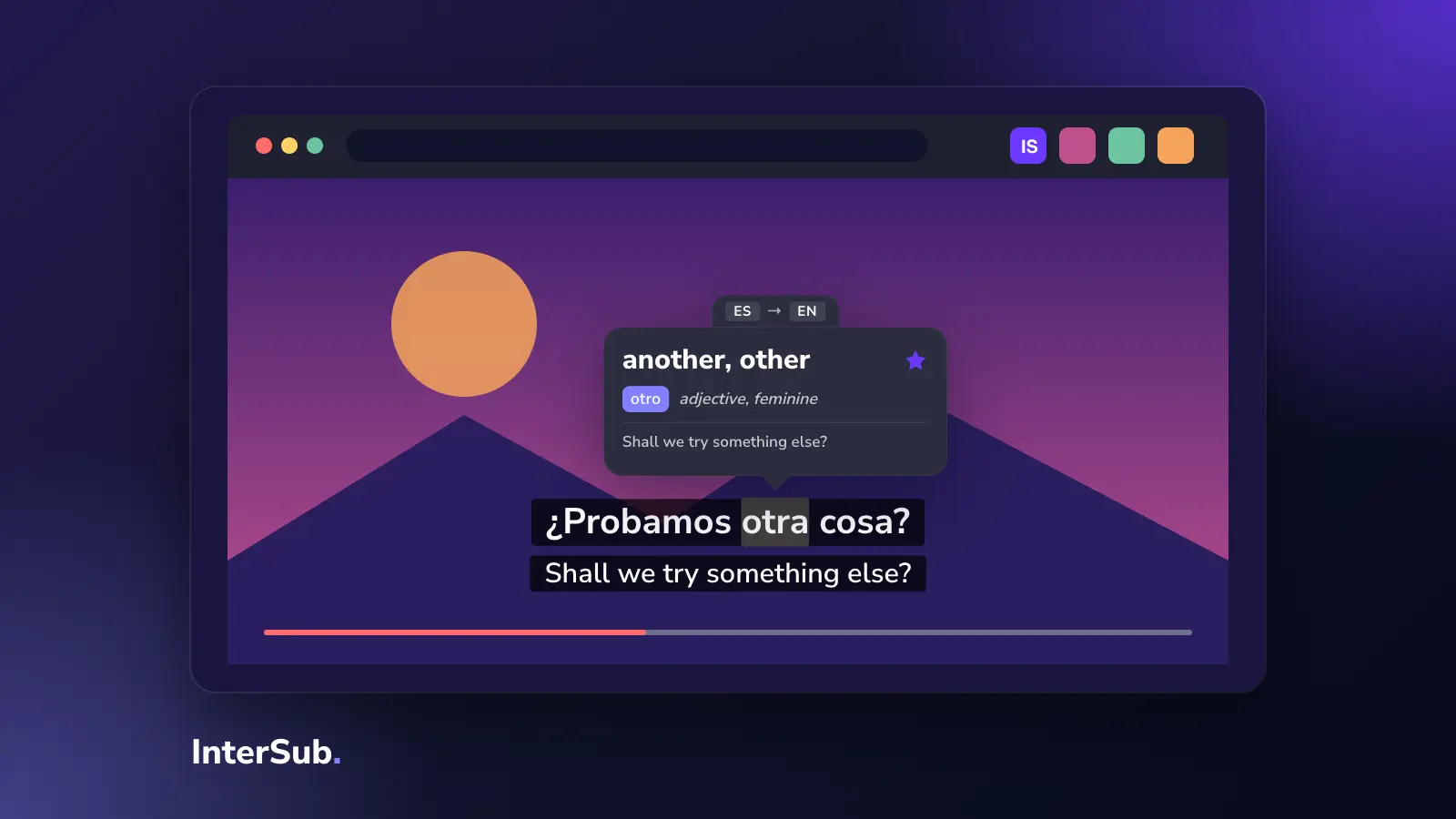
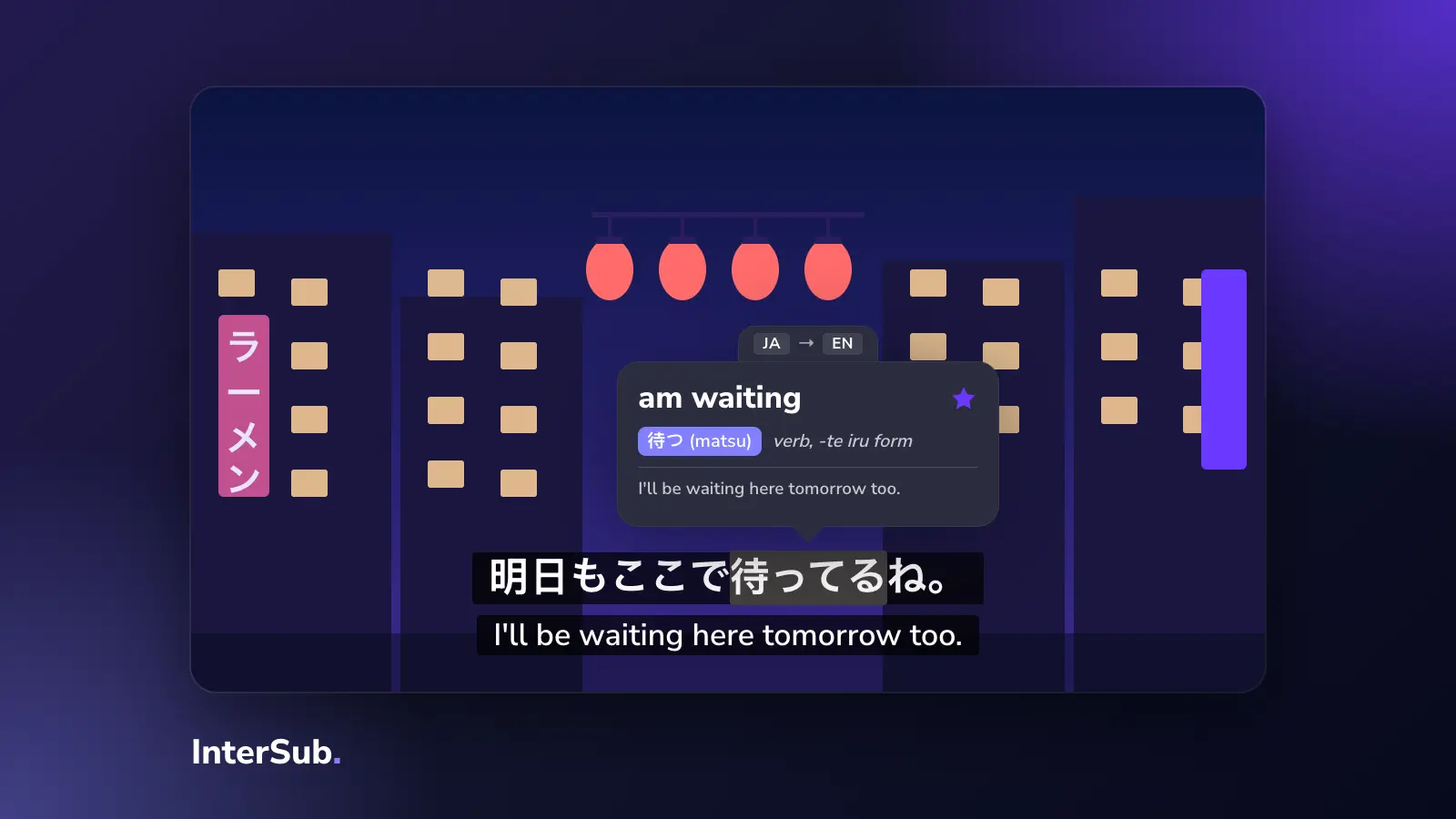
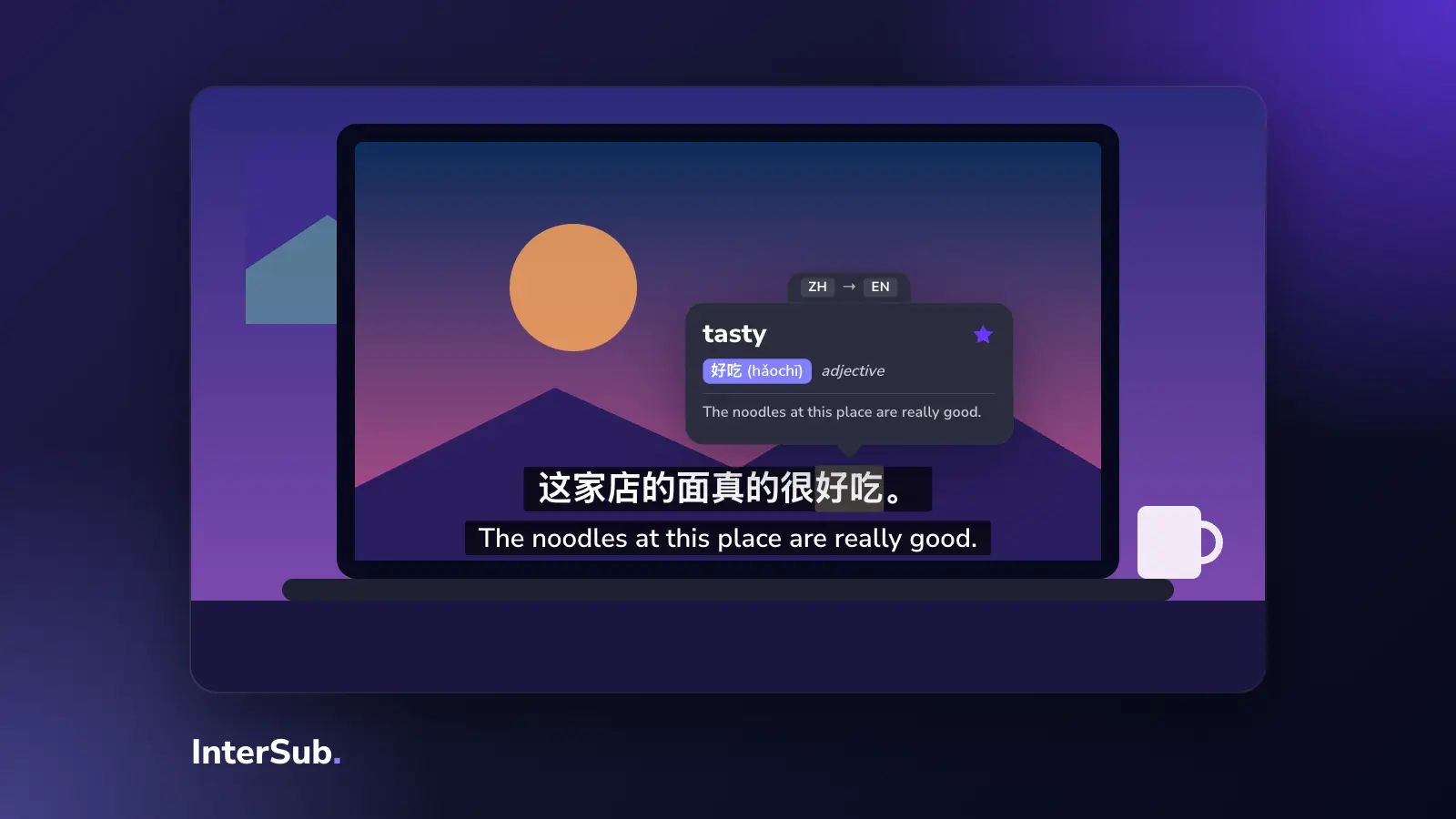
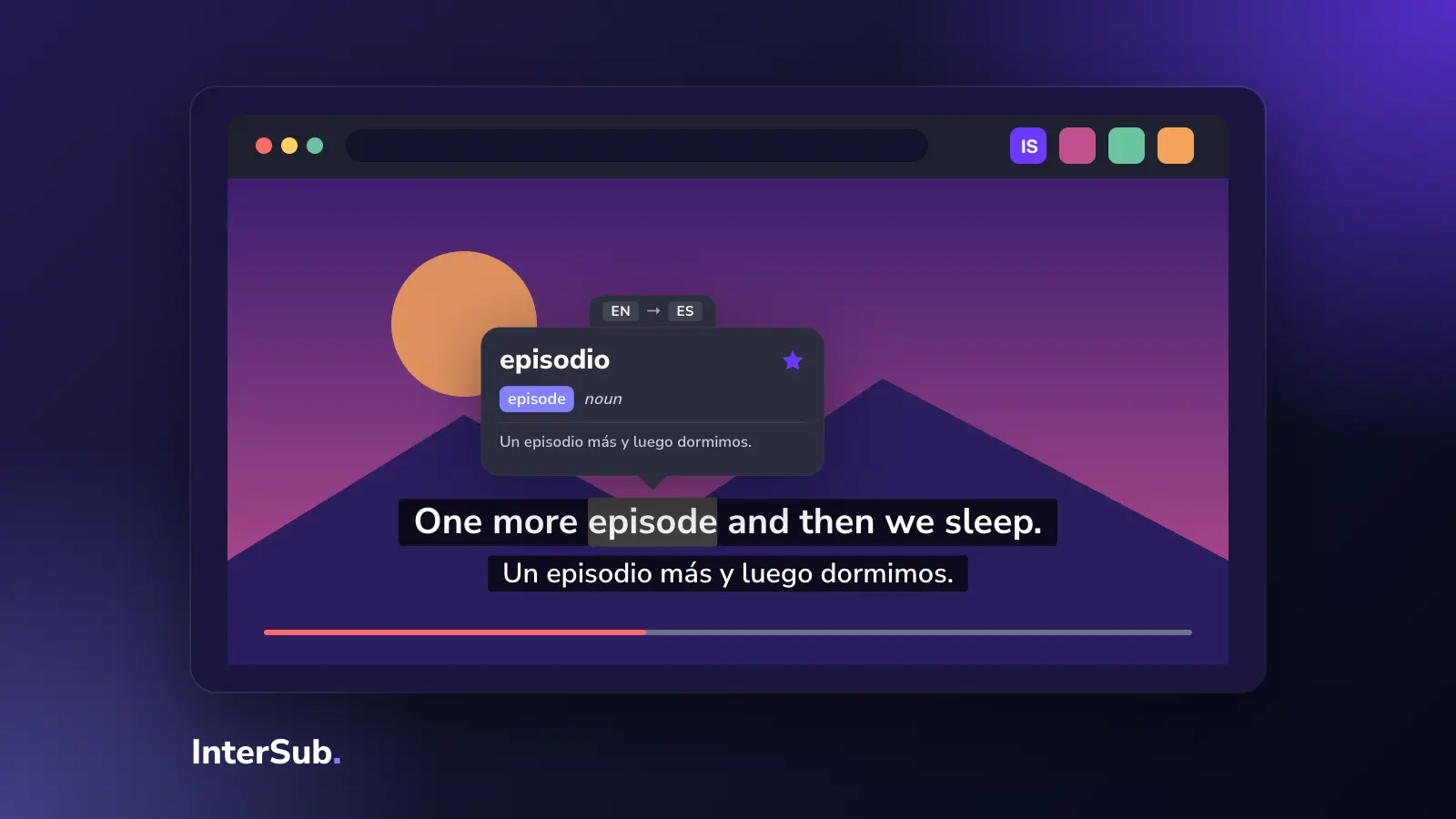
The one we make, so judge us by the list as a whole. InterSub adds a second subtitle line to Netflix, so you see the original and your language together; hover over a word and the video pauses and shows its translation. Saved words go to your Wordbook and to Anki. It is a dual subtitles extension first and a translator extension second, and it works on YouTube, Prime Video, Crunchyroll and course sites too.
Settings worth knowing: the second line only on pause, subtitles only on pause for listening practice, and a shadowing mode that pauses after each line. More in our guide to Netflix dual subtitles.
2. Language Reactor: the best-known alternative
Language Reactor also shows two subtitle lines on Netflix and YouTube, with a word list and a "pause after each line" mode. It does more than InterSub: phrase lists, a transcript beside the video, exports. Some people love that; others find it too much on screen. If you want the full toolbox, try it; if you want two lines and a dictionary that stay out of the way, try ours.
3. Netflix Extended: playback control
The Netflix chrome extension for everything that isn't subtitles. It skips intros, recaps and the "Are you still watching?" prompt, starts the next episode right away, adds keyboard shortcuts, playback speed and subtitle styling, and can hide spoilers in descriptions. It was updated in October 2026 and has about 60,000 users.
4. Teleparty: watch with friends
The best-known chrome extension for Netflix watch parties. One person starts a party and shares a link; playback stays in sync for everyone, with a chat next to the video. It works with other streaming services too.
5. Super Netflix: still searched, hard to recommend
Super Netflix was popular for quality controls, spoiler blocking and custom subtitles, and people still search for it every month. But it was last updated years ago, Netflix restricted the quality controls, and in October 2026 we could not open its Chrome Web Store page. If you have the Super Netflix extension installed and it still does what you need, fine. For a new install, Netflix Extended covers most of the same ground.
What we would install
For language learning: InterSub (or Language Reactor). For comfort: Netflix Extended. For friends: Teleparty. That's three Netflix extension slots, and more than that tends to break: extensions that change the same player conflict, and every Netflix update breaks some of them for a while.
A Netflix subtitles extension is the one category Netflix itself has no answer to; if subtitles are why you are here, Netflix dual subtitles are where to start.
Frequently asked questions
What are the best Chrome extensions for Netflix?
InterSub or Language Reactor for subtitles in two languages, Netflix Extended for playback controls, and Teleparty for watching with friends.
Does Super Netflix still work?
We could not open its Chrome Web Store page in October 2026, and it had not been updated for years before that. Netflix Extended covers most of the same features and is maintained.
How to watch Netflix with friends online?
Install Teleparty: one person starts a party and shares a link, and playback stays in sync for everyone, with a chat beside the video.
Can an extension add dual subtitles to Netflix?
Yes. Netflix itself shows one subtitle track; an extension like InterSub adds a second line on a computer. See how to watch Netflix with two subtitles.